What's New in Go Show Audio 1.0.8: Program Your Remote, Import a Whole Show and More
Go Show Audio 1.0.8 is live in the App Store, and it is packed. Every feature in it came from the same place: performers telling us what goes wrong at a real show, and asking us to fix it.
Here is everything that is new, what it does for you on stage, and a short video for each one.
To get it: update Go Show Audio in the App Store.
1. Program every button on your remote
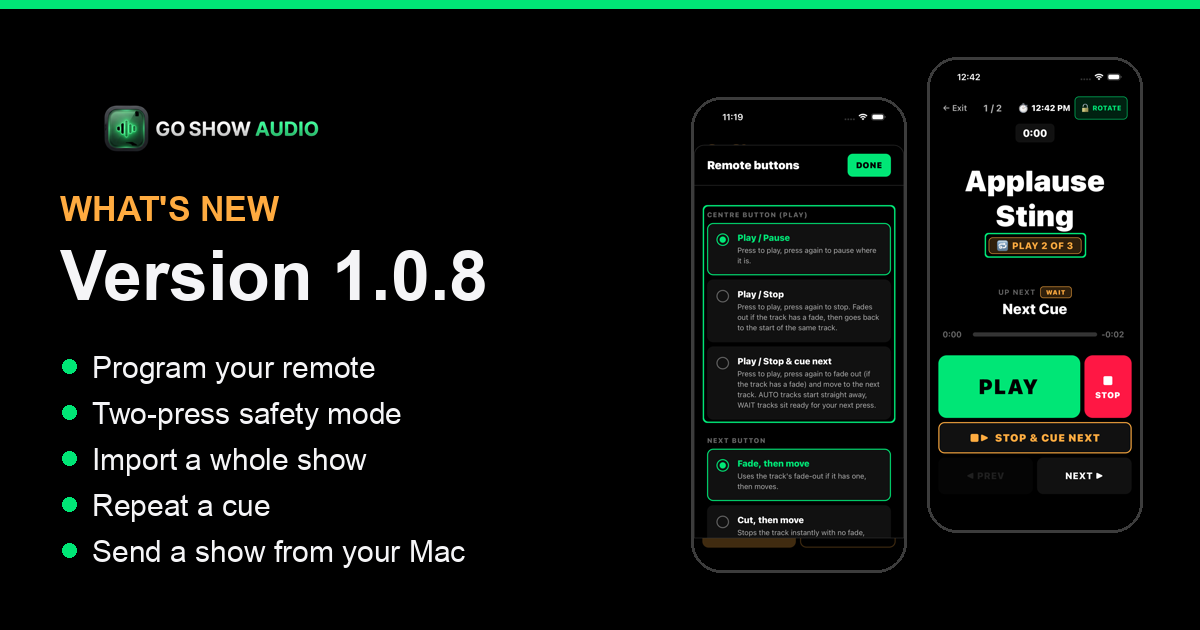
Tap REMOTE on the Shows screen, the first screen in the app, and choose what each button does.
- Center button: Play / Pause, Play / Stop, or Play / Stop and cue next.
- Next and Previous: fade the track out first, or cut it clean.
So what? The remote works the way your act works. A magician who needs a hard stop on a reveal picks Play / Stop. A hypnotist who wants the music to breathe out picks a fade. Your choices are saved, so every show behaves the same way, every night.
2. Two-press safety mode: no more accidental cues
Switch on two-press safety mode on the same screen. When your remote's keypad is dark, the first press only wakes it up, and the app ignores it. The second press fires the cue. Stage Mode shows a READY bar so you always know which state you are in.
So what? You can pick the remote up in the dark, brush a button in your pocket, or grab it mid bit, and nothing plays until you mean it. The wrong track never fires while the room is watching. Prefer one press? Turn it off any time.
3. Import a whole show in one tap
Put a show's tracks in one folder in Files or iCloud Drive. Tap IMPORT SHOW, pick the folder, and every track loads in running order, ready to perform.
So what? No more adding thirty tracks one at a time before a gig. New phone, new iPad, or a backup device for the show? Your whole show is back in one tap.
4. Send a show from your Mac
Build your show on your Mac, where the files already live. Plug in your iPhone or iPad, open it in Finder, and drag the show onto Go Show Audio. Then tap IMPORT SHOW on your device and open it.
So what? Your editing stays on the big screen, and your device gets the finished show with no cloud upload and no waiting on hotel wifi.
5. Repeat a cue
Need the same cue more than once, like an applause sting or a drum roll? Open the track and set Repeat to anywhere from 2 to 20 plays. On stage, each Play fires it again from the top, and the screen shows PLAY 2 OF 3 so you never lose count. Press Next any time to skip the plays you have left.
So what? One track in your list instead of five copies of the same file, and the show still moves on by itself after the last play.
6. A one-tap screen lock
Hold your device the way you want it, tap the padlock on the stage screen, and the stage screen stays put. No more screen flipping when you set your phone down on a stool.
7. Smoother fades, every time
Track volume now tops out at 100%, so every fade out plays smoothly all the way down. Set a fade once and trust it.
8. Fixes you will feel
- One remote press is always one action.
- A second press during a fade can no longer skip two tracks.
All fifteen tutorials, updated
We remade the whole tutorial series for 1.0.8, so every video matches the app on your phone. Fifteen short videos take you from sign up to a bulletproof show. Watch the tutorials, or grab the free Flawless Show Setup Guide, which now covers every new feature.
Got the new remote on pre-order?
The remote settings are built around the Go Show Audio Wireless Cue Remote, which lights up its keypad on every press. Founder pre-orders are still open at $59.
What should we build next? Reply to any of our emails or write to info@nationalentertainmentgroup.com. The features in this update started exactly that way.
Run your show music from your pocket
Go Show Audio fires every cue on your cue. Works offline, works with Bluetooth and USB remotes, on iPhone and iPad.